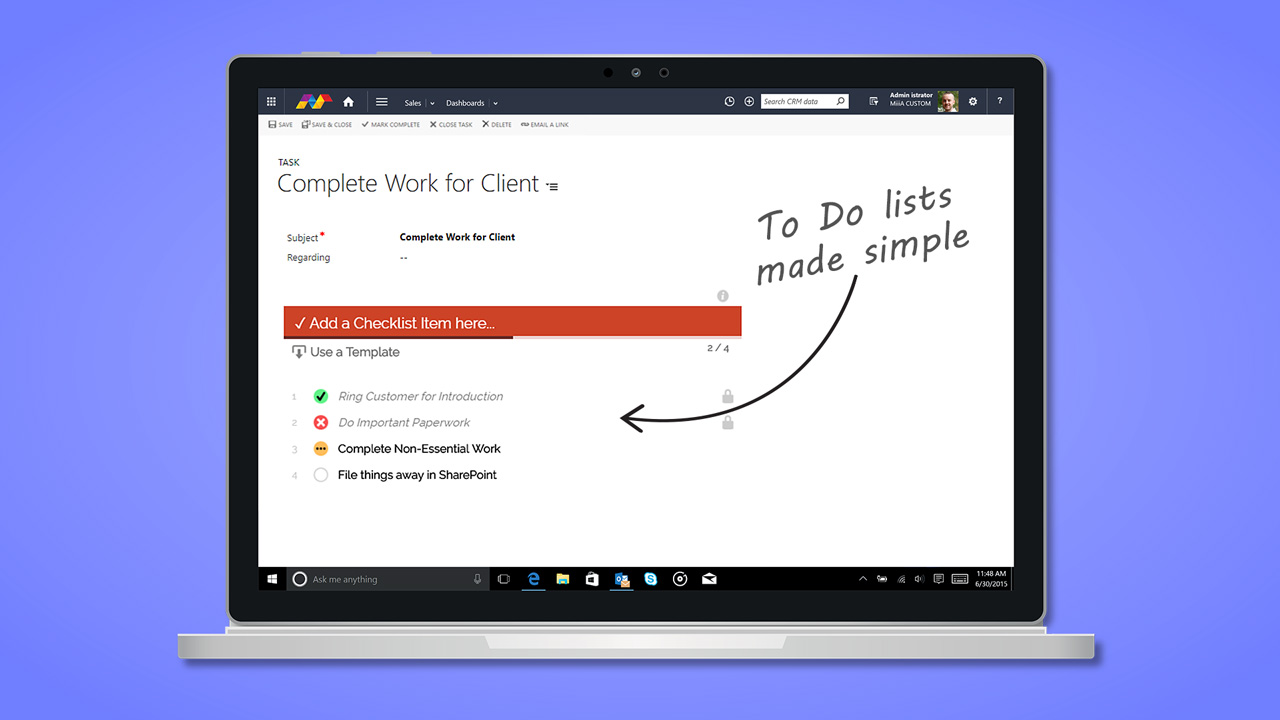
Enhance the usefulness of Dynamics 365 records with multi-function D365 Checklists. Make life simple again with this easy yet powerful add-on.

Key Features
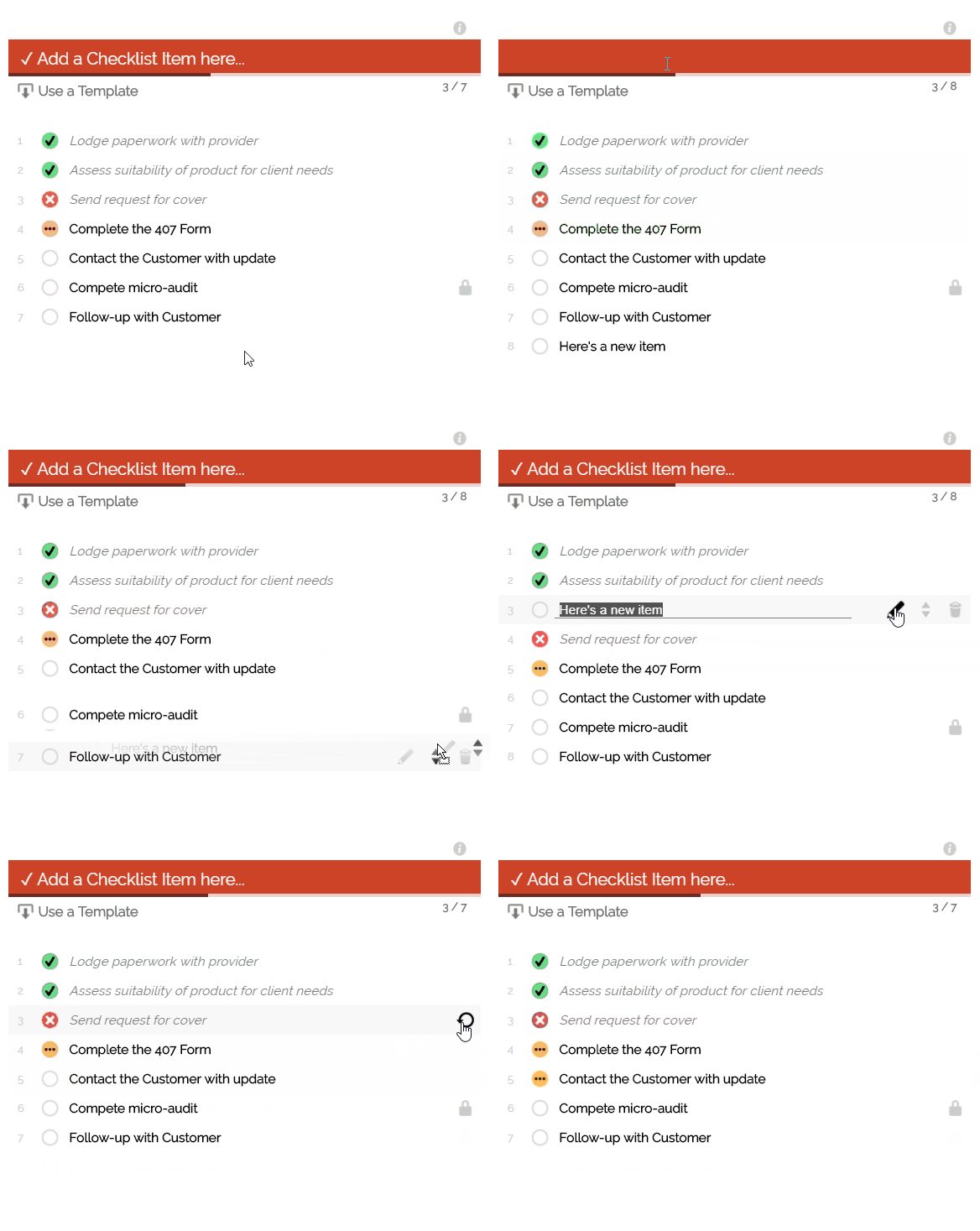
- Add Checklists to Dynamics 365 records (System or Custom entities)
- Checklists behave like normal Dynamics 365 form elements. Edits make the form “dirty” immediately, using Save, Save & Close or Mark Complete commits changes.
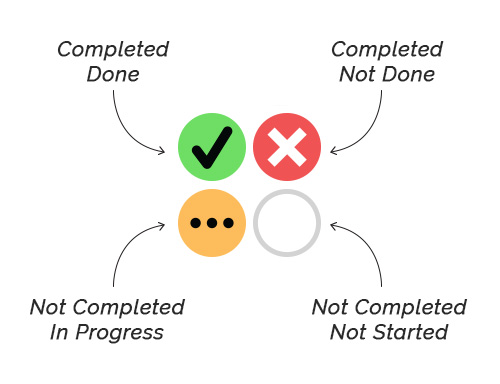
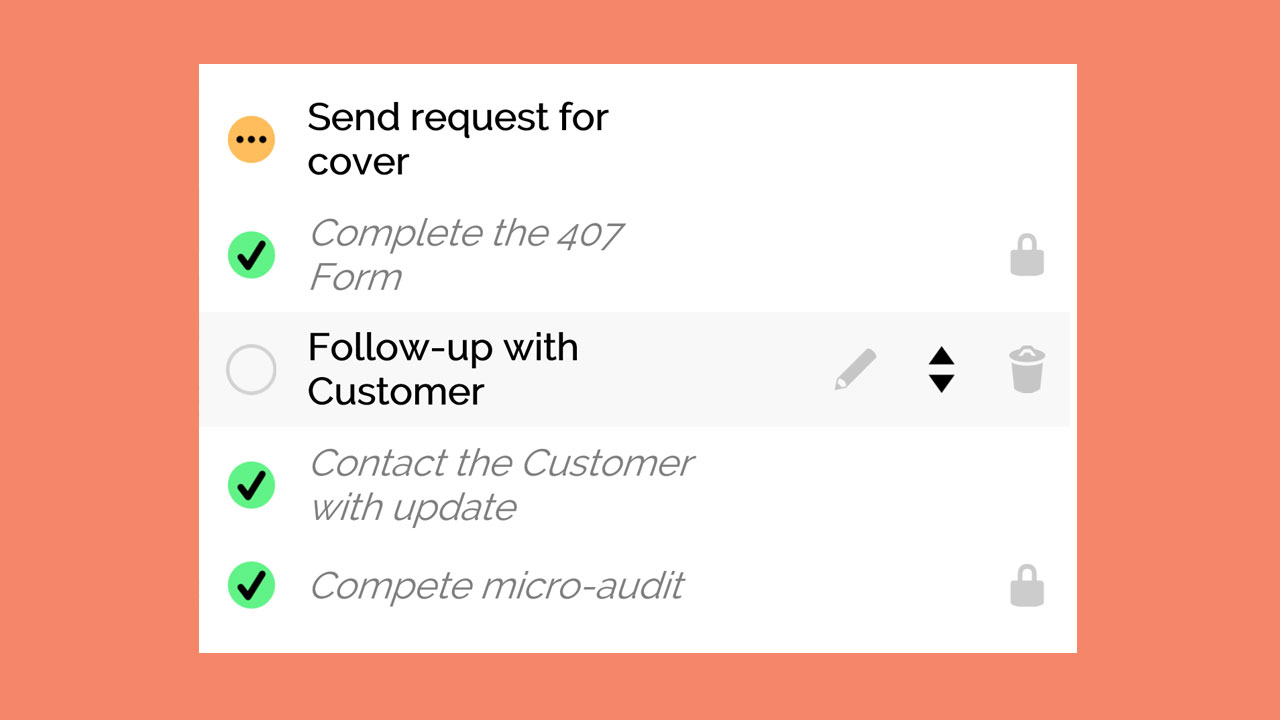
- Statuses for each Checklist Item are:
-
Blank (not started)
-
Tick (completed)
-
Cross (not done)
-
Partial (in progress)
-
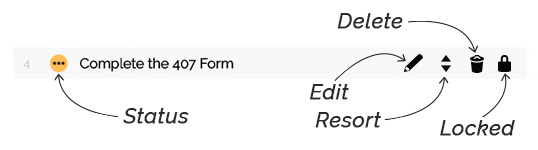
- Edit existing items or Reset already completed items to start fresh
- Sort items with a simple drag-n-drop
- Delete existing items

- The User’s name and date/time is recorded when an item is modified
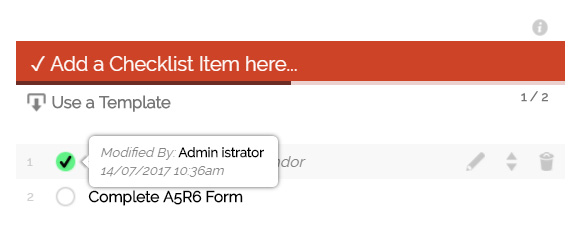
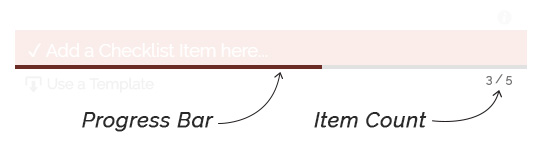
- List progress is displayed, and when completed are visually represented